
Tired of your favorite shows freezing at the most crucial moments? IPTV buffering issues can turn an enjoyable streaming experience into a frustrating ordeal. Whether you’re watching live sports, movies, or TV series, constant interruptions due to slow device performance can ruin your entertainment time. The good news is that most IPTV buffering problems can be fixed without expensive equipment upgrades or technical expertise.
In this comprehensive guide, we’ll walk you through practical, step-by-step solutions to improve device speed for IPTV streaming. From simple hardware tweaks to network optimization strategies, you’ll discover how to eliminate those annoying loading circles and enjoy seamless, high-quality streaming on any device. Let’s transform your IPTV experience from frustrating to fantastic!
Why Device Speed Matters for IPTV Quality
Before diving into solutions, it’s important to understand why device speed directly impacts your IPTV streaming quality. Unlike traditional cable or satellite TV, IPTV relies on internet protocols to deliver content to your screen in real-time. This process demands consistent data processing from your device.
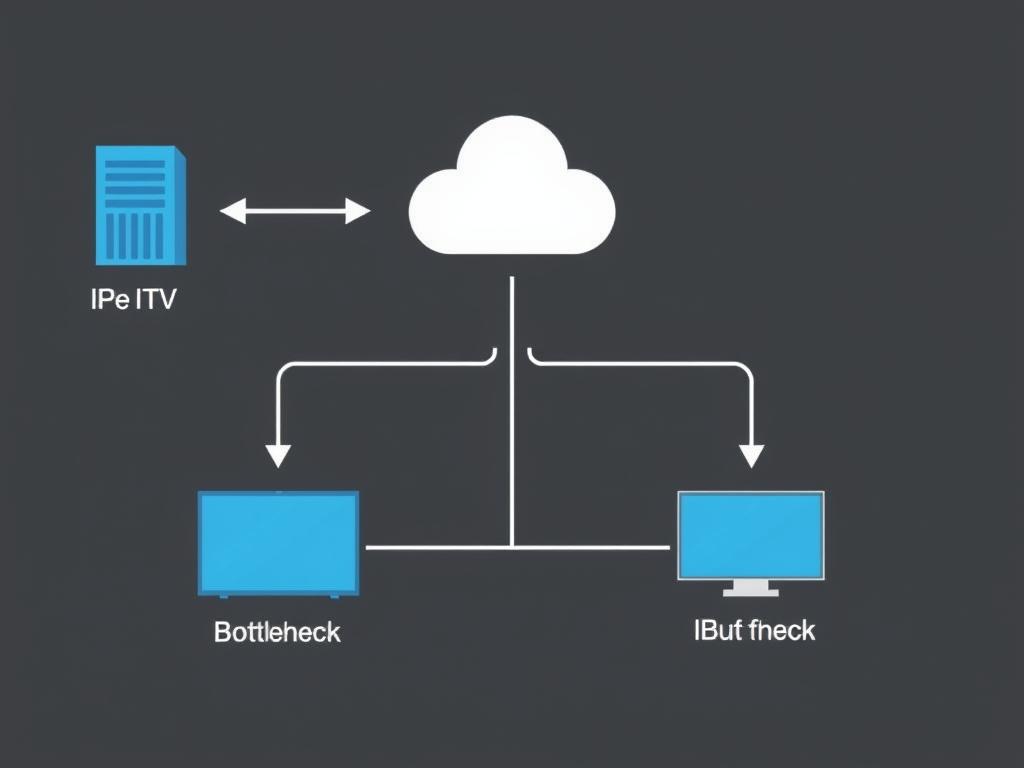
When your device struggles to process incoming data quickly enough, you experience buffering – those frustrating pauses while your screen shows a spinning circle. Several factors contribute to this problem:
- Insufficient device processing power or RAM
- Background apps consuming valuable resources
- Accumulated cache files slowing down performance
- Network congestion or bandwidth limitations
- ISP throttling of streaming traffic
The good news is that you can address most of these issues with simple optimizations. Let’s start with the most effective hardware improvements you can make to your streaming device.
Hardware Optimization Techniques
Your streaming device’s performance significantly impacts your IPTV experience. These hardware optimization techniques can dramatically reduce buffering without requiring any new equipment purchases.
Clear Cache and Free Up Storage Space
Over time, streaming apps accumulate cache data that can slow down your device. Clearing this cache regularly is one of the most effective ways to improve device speed for IPTV streaming.
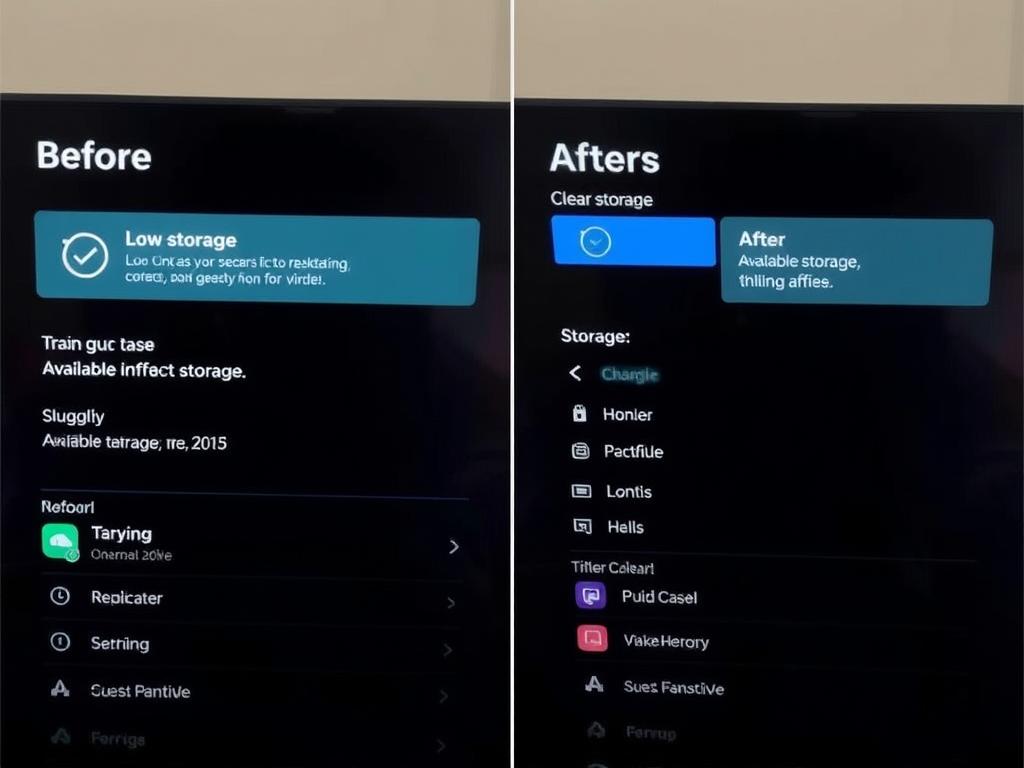
How to Clear Cache on Popular Devices:
| Device | Steps to Clear Cache | Recommended Frequency |
| Firestick/Fire TV | Settings → Applications → Manage Installed Applications → Select IPTV app → Clear Cache | Weekly |
| Android TV Box | Settings → Apps → See all apps → Select IPTV app → Storage → Clear Cache | Weekly |
| Smart TV | Settings → Support → Device Care → Manage Storage → Clear Data | Bi-weekly |
Close Background Apps
Multiple apps running in the background consume valuable RAM and processing power that your IPTV app needs. Closing unnecessary apps can significantly improve streaming performance.
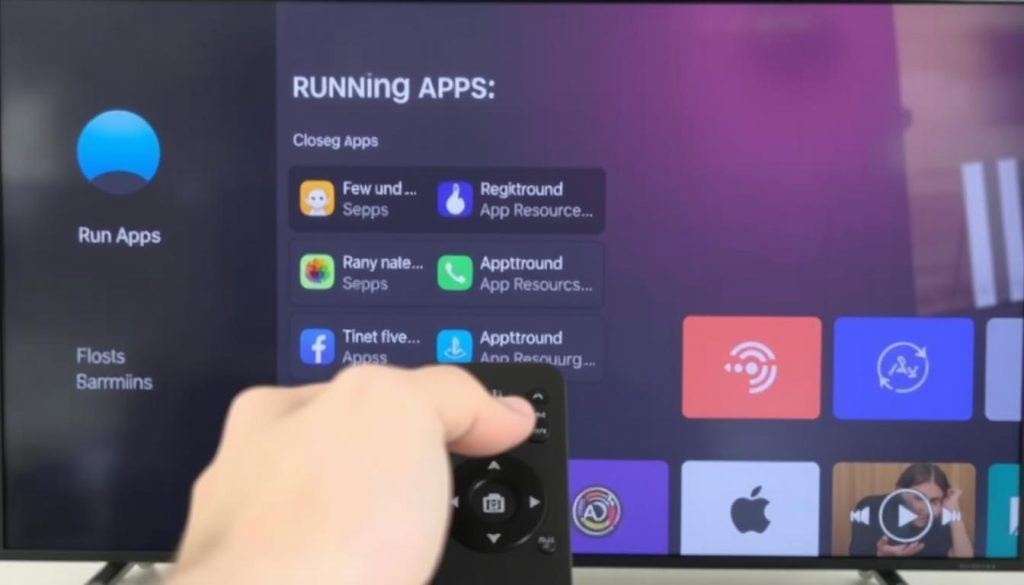
“I was constantly experiencing buffering until I realized I had 12 apps running in the background. After closing them, my IPTV streams became completely smooth, even at peak hours.”
Quick Steps to Close Background Apps:
- On Firestick/Fire TV: Double-press the Home button to open the app switcher, then select apps to close
- On Android TV: Press the Home button, select the recent apps icon, then swipe away unwanted apps
- On Smart TVs: Press and hold the Home button to access the app manager, then close unnecessary apps
Experiencing Persistent Buffering Issues?
A quality VPN can prevent ISP throttling and improve your streaming experience. Try Surfshark VPN with our exclusive 30-day money-back guarantee.
Network Optimization Strategies
Even the most powerful streaming device will struggle with IPTV if your network connection isn’t optimized. These strategies will help you maximize your internet performance for buffer-free streaming.
Wired vs. Wireless Connections
While Wi-Fi is convenient, an ethernet connection provides significantly more stable and faster speeds for IPTV streaming. This simple change often eliminates buffering completely.
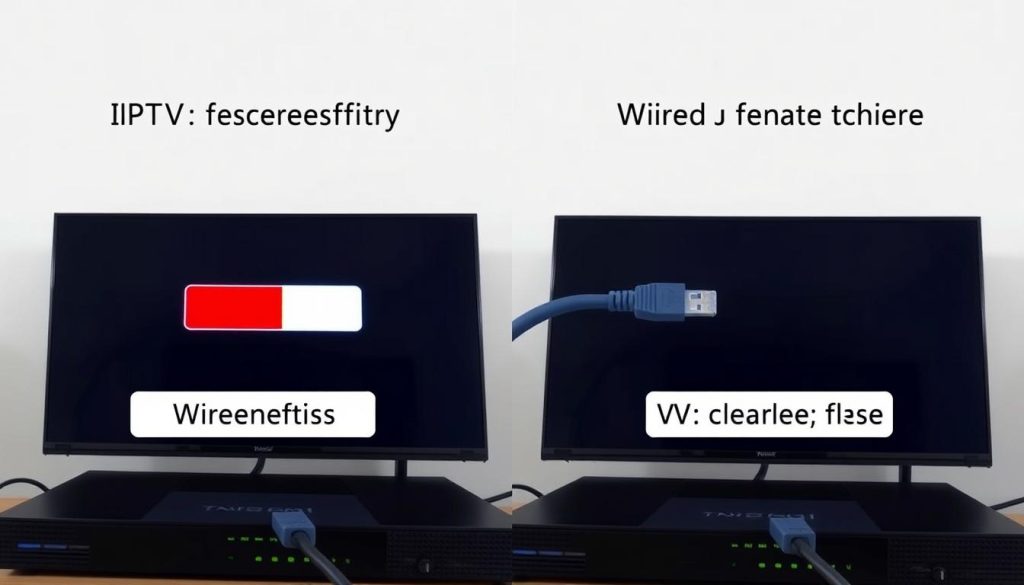
Wired Connection Benefits
- Consistent speeds without interference
- Lower latency for live IPTV content
- No signal degradation over distance
- Not affected by walls or other obstacles
Wireless Connection Limitations
- Signal interference from other devices
- Speed drops through walls and floors
- Affected by distance from router
- Shared bandwidth with other wireless devices
How to Set Up an Ethernet Connection:
- Purchase an Ethernet adapter compatible with your streaming device
- Connect the adapter to your device’s USB or power port
- Run an Ethernet cable from your router to the adapter
- Go to network settings and select wired connection
Pro Tip: If running Ethernet cables isn’t practical, consider powerline adapters that use your home’s electrical wiring to extend your network connection to any room.
Bandwidth Management
IPTV requires consistent bandwidth to deliver smooth streaming. Managing your network usage can prevent other devices from interfering with your IPTV experience.
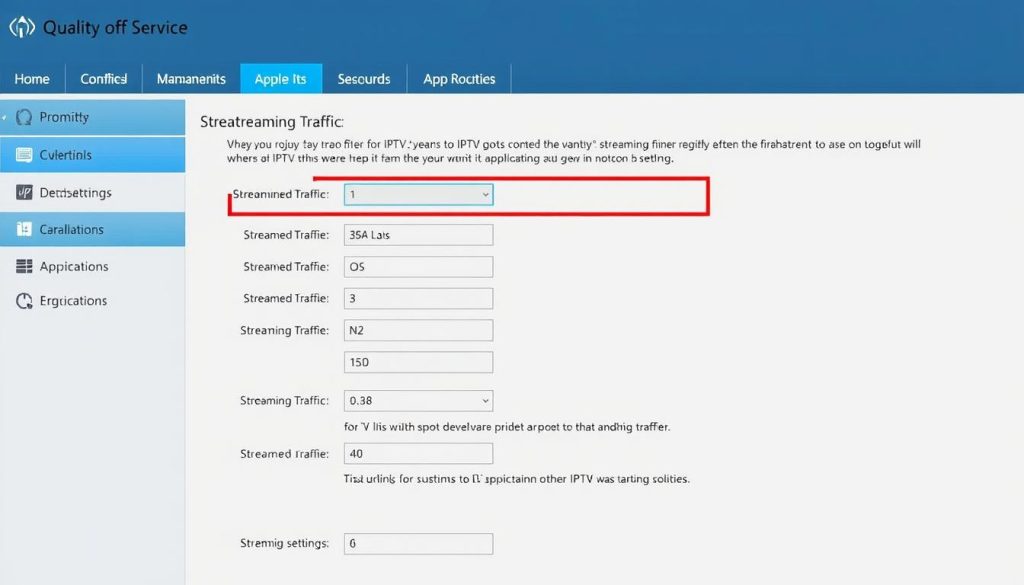
Effective Bandwidth Management Techniques:
- Enable QoS (Quality of Service): This router setting prioritizes IPTV traffic over other network activities
- Limit simultaneous streams: Reduce the number of devices streaming at the same time
- Schedule large downloads: Set updates and downloads to occur during off-peak hours
- Check for bandwidth hogs: Use your router’s management page to identify devices consuming excessive bandwidth
Using a VPN to Prevent ISP Throttling
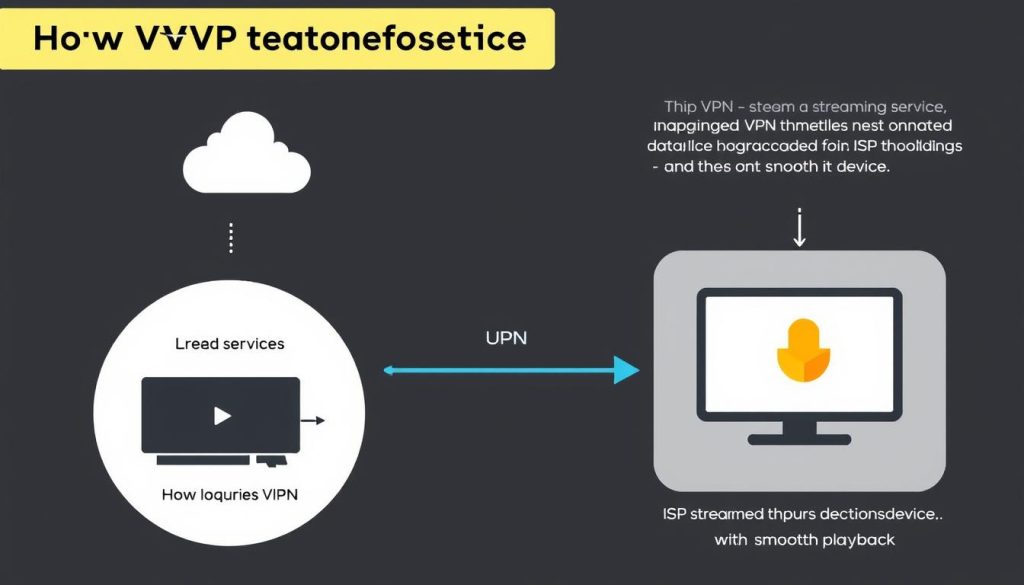
Many internet service providers (ISPs) deliberately slow down streaming traffic, especially during peak hours. This practice, known as throttling, is a common cause of IPTV buffering issues. A quality VPN can prevent throttling by encrypting your traffic so your ISP can’t identify and limit IPTV streams.
Stop ISP Throttling Now
A premium VPN encrypts your connection to prevent throttling and improve streaming speeds. Try ExpressVPN with our exclusive 49% discount.
Device-Specific Tips for Popular Streaming Devices
Different streaming devices have unique optimization opportunities. Here are specific tips for the most popular IPTV streaming platforms.
Amazon Firestick and Fire TV
Firestick devices are among the most popular for IPTV streaming but can be prone to performance issues without proper optimization.
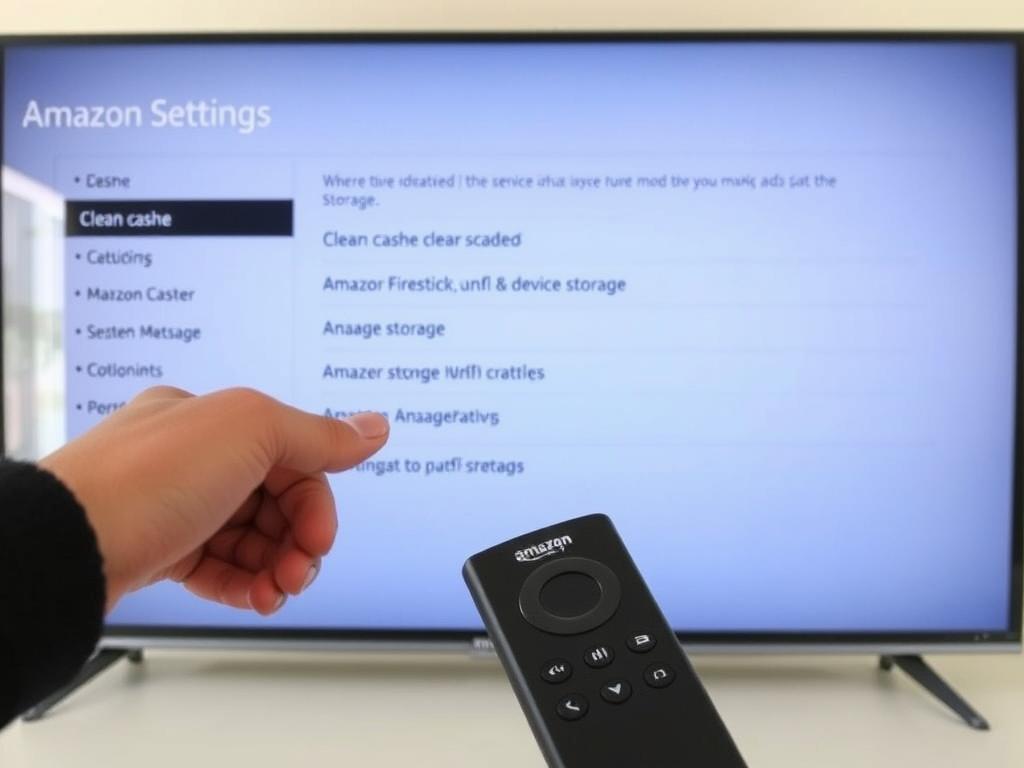
Firestick Optimization Tips:
- Disable automatic app updates: Settings → Applications → Appstore → Automatic Updates → Off
- Turn off data monitoring: Settings → Preferences → Privacy Settings → Data Monitoring → Off
- Disable unnecessary notifications: Settings → Preferences → Notification Settings → App Notifications → Disable for non-essential apps
- Use a cooling solution: Firesticks can overheat during extended use, causing performance drops. Consider a USB fan attachment
Android TV and Google TV Boxes
Android-based streaming boxes offer excellent performance for IPTV but benefit from specific optimizations to maintain speed.
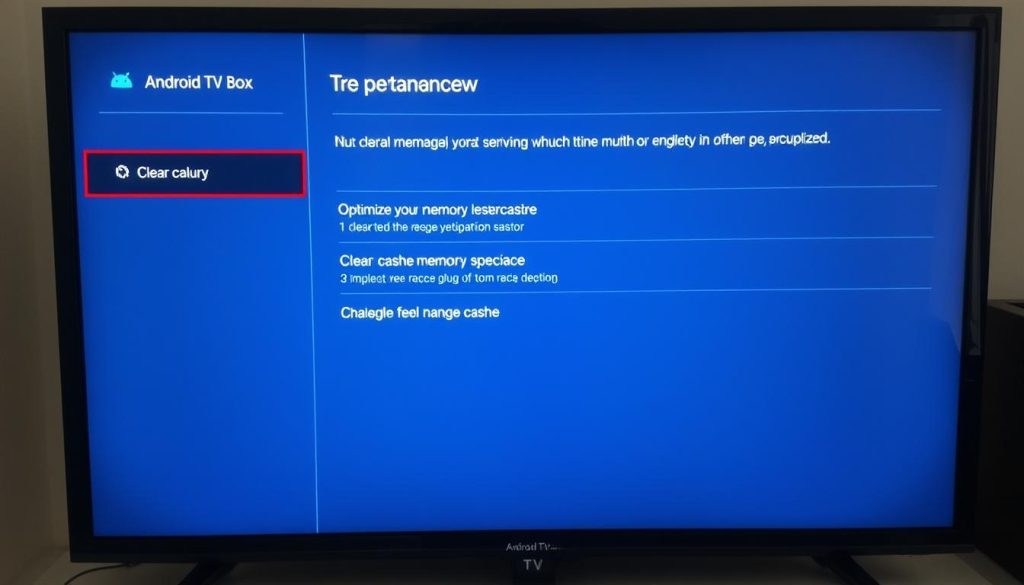
Android TV Optimization Tips:
- Enable developer options: Settings → About → Build (tap 7 times) → return to Settings → System → Developer Options
- Limit background processes: In Developer Options → Background process limit → No more than 2 processes
- Disable animations: In Developer Options, set all animation scales to 0.5x or off
- Use a lightweight launcher: Replace the default launcher with a minimalist alternative
Smart TVs
Built-in Smart TV apps can provide convenient IPTV access but often have limited resources compared to dedicated streaming devices.
Smart TV Optimization Tips:
- Perform regular system updates: Keep your TV’s firmware current for best performance
- Factory reset periodically: Consider a reset every 6-12 months to clear accumulated system clutter
- Disable content recommendations: These services run in the background and consume resources
- Consider an external device: For older Smart TVs, a dedicated streaming device often provides better performance
Need a More Powerful Streaming Device?
If your current device continues to struggle with IPTV playback after optimization, it might be time for an upgrade. Our research shows these devices offer the best performance for buffer-free IPTV streaming:
- NVIDIA Shield TV Pro – Premium performance with 3GB RAM
- Amazon Fire TV Cube – 2GB RAM with hexa-core processor
- Formuler Z10 Pro Max – Dedicated IPTV optimization
Advanced Troubleshooting for Persistent Buffering Issues
If you’ve tried the basic optimizations and still experience buffering, these advanced techniques can help identify and resolve deeper issues affecting your IPTV performance.
Check Your Internet Speed
Before diving into complex solutions, verify that your internet connection meets the minimum requirements for smooth IPTV streaming.
Minimum Speed Requirements for IPTV:
| Content Quality | Minimum Download Speed | Recommended Speed |
| SD (480p) | 3 Mbps | 5 Mbps |
| HD (720p) | 5 Mbps | 10 Mbps |
| Full HD (1080p) | 10 Mbps | 15 Mbps |
| 4K/UHD | 25 Mbps | 50+ Mbps |
Use a reliable speed testing tool to check your actual connection speed. If your results fall below the minimum requirements, contact your ISP about upgrading your plan or addressing connection issues.
Adjust IPTV Player Settings
Many IPTV applications offer advanced settings that can be tuned to improve performance on your specific device and network.
Key Settings to Adjust:
- Buffer size: Increase for more stable playback (2000-5000ms recommended)
- Hardware acceleration: Enable to use your device’s GPU for video processing
- Video decoder: Try different options (HW, HW+, SW) to find the most stable for your device
- Stream format: Some devices handle certain formats better (try TS, HLS, or DASH)
Important: Settings that work perfectly on one device may cause issues on another. Test different configurations to find what works best for your specific setup.
DNS Server Optimization
Your default DNS servers provided by your ISP may not be optimized for streaming. Switching to faster, more reliable DNS servers can improve IPTV performance.
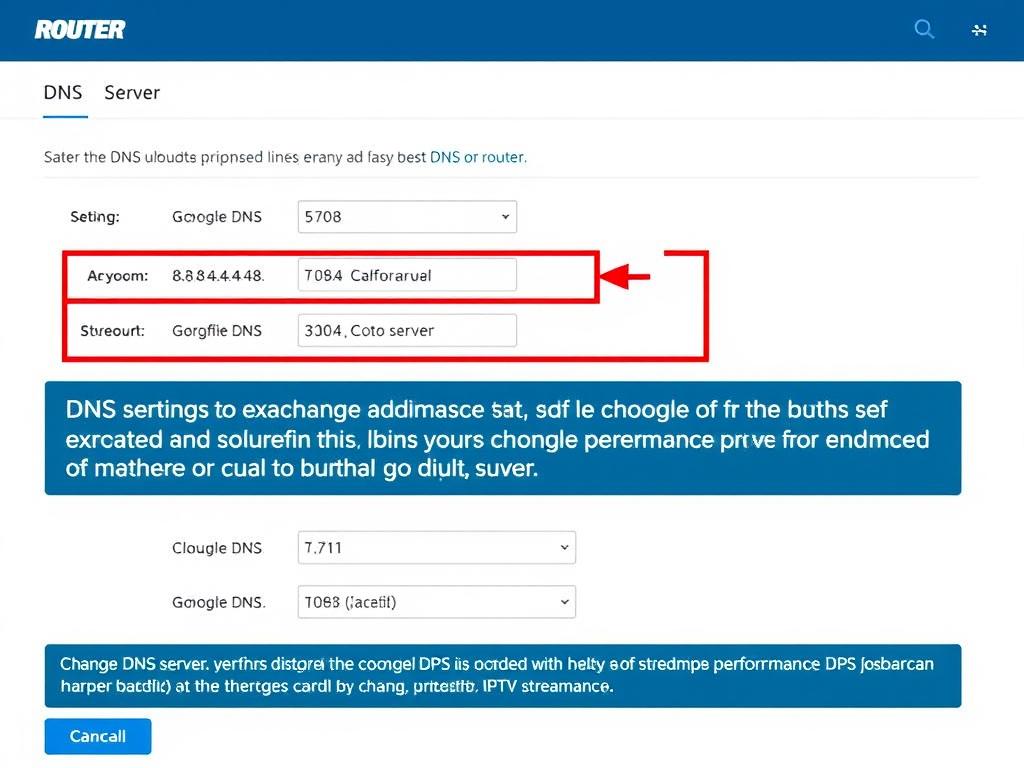
Recommended DNS Servers:
- Google DNS: 8.8.8.8 and 8.8.4.4
- Cloudflare: 1.1.1.1 and 1.0.0.1
- OpenDNS: 208.67.222.222 and 208.67.220.220
You can change DNS settings either on your router (affecting all devices) or individually on each streaming device through network settings.
Still Experiencing Buffering Issues?
Our premium VPN service includes optimized servers specifically for IPTV streaming, with unlimited bandwidth and no throttling.
Maintenance Routine for Ongoing Optimal Performance
Establishing a regular maintenance routine will help keep your IPTV streaming smooth and buffer-free over the long term. Here’s a simple schedule to follow:
Weekly Maintenance Tasks
- Clear cache on all IPTV applications
- Close background apps and restart streaming device
- Check for app updates
- Run a quick speed test to verify connection quality
Monthly Maintenance Tasks
- Restart your router and modem
- Check for firmware updates for all network equipment
- Clean physical dust from devices (improves cooling)
- Review and close unused apps or remove unnecessary ones
- Check VPN settings and server selections
Quarterly Maintenance Tasks
- Perform a factory reset on problematic devices
- Evaluate your internet plan against your needs
- Check all physical connections and cables
- Consider upgrading outdated equipment
“Prevention is better than cure. A simple 5-minute weekly maintenance routine has completely eliminated buffering issues on my IPTV setup for over a year now.”
Remember: Always back up your IPTV playlists, favorites, and settings before performing major maintenance tasks like factory resets.
Conclusion: Enjoy Your Buffer-Free IPTV Experience
Improving device speed for IPTV doesn’t have to be complicated or expensive. By implementing the strategies outlined in this guide, you can significantly enhance your streaming experience and eliminate frustrating buffering issues. Remember that optimal performance comes from addressing multiple factors – device optimization, network configuration, and regular maintenance all work together to provide smooth playback.
Start with the simplest solutions like clearing cache and closing background apps, then progress to more advanced techniques if needed. Pay special attention to your network setup, as this is often the most significant factor in IPTV performance. And don’t forget that a quality VPN can be a game-changer if your ISP is throttling streaming traffic.
With a little effort and the right approach, you can transform your IPTV experience from frustrating to fantastic. No more missed moments or interrupted shows – just smooth, high-quality streaming exactly when you want it.
Ready for Buffer-Free IPTV Streaming?
Protect your connection from throttling and enjoy optimal streaming speeds with our recommended VPN service.
Frequently Asked Questions
Why does my IPTV buffer even with fast internet?
Even with fast internet, buffering can occur due to ISP throttling, device limitations, server overload, or inefficient home network setup. Try using a VPN to prevent throttling, optimize your device settings, and consider a wired connection instead of Wi-Fi.
Is a VPN necessary for IPTV streaming?
While not absolutely necessary, a VPN offers significant benefits for IPTV users. It prevents ISP throttling, enhances privacy, bypasses geographic restrictions, and can improve connection stability. If you experience buffering during peak hours, a VPN is often the most effective solution.
What’s the best streaming device for buffer-free IPTV?
Devices with at least 2GB of RAM and a quad-core processor provide the best IPTV performance. The NVIDIA Shield TV Pro, Amazon Fire TV Cube, and Formuler Z10 Pro Max are top choices. However, even budget devices like the Firestick 4K can perform well when properly optimized using the techniques in this guide.
How often should I clear cache on my IPTV apps?
For optimal performance, clear your IPTV app cache weekly. However, if you watch several hours daily or notice performance degradation, you may benefit from clearing cache twice weekly. Most streaming devices make this a simple process through the application settings menu.
Can my router cause IPTV buffering issues?
Yes, an outdated or underpowered router can significantly impact IPTV performance. Routers older than 3-4 years may struggle with modern streaming demands. Look for routers with dual-band capability (2.4GHz and 5GHz), QoS features, and at least AC1200 rating for optimal IPTV streaming.