
Exploring IPTV services can be exciting, but managing your portal after a trial period can raise questions. Many users wonder if adjustments are necessary once the trial ends. Understanding how trials work with devices like Smart STB and MAG can help clarify the process.
During the trial, your portal URL, Software ID, and Virtual MAC address are configured to access the service. Once the trial expires, these settings may require updates to continue using the app. Expired trials often lead to demo mode lockouts, which can be frustrating without proper troubleshooting.
This guide will walk you through the steps to manage your portal effectively. Whether you’re transitioning to a paid subscription or exploring other options, knowing the basics ensures a smooth experience.
Key Takeaways
- Trials configure portal URLs, Software ID, and Virtual MAC addresses.
- Expired trials may lock you into demo mode without updates.
- Smart STB and MAG devices require specific settings post-trial.
- Paid subscriptions often resolve demo mode lockouts.
- Troubleshooting steps can help regain access to the service.
Introduction
Smart STB mimics the functionality of a MAG box, making IPTV accessible on modern TVs. This application works seamlessly across Samsung, LG, and Philips TVs, transforming them into powerful streaming hubs. To get started, you’ll need a portal URL and a Virtual MAC address, which are essential for accessing your IPTV provider.
The Smart STB ecosystem is designed to simplify IPTV service delivery. Portal URLs act as gateways, connecting your device to the provider’s server. Without these, your TV won’t be able to stream content. Virtual MAC addresses ensure your device is uniquely identified, allowing for personalized service access.
Trials often provide a 7-day window to explore the service. Once the trial ends, transitioning to a paid subscription is straightforward. Most IPTV providers offer lifetime licenses, ensuring uninterrupted access. However, expired trials can lock you into demo mode, requiring updates to your portal settings.
Here’s a quick comparison of trial and post-trial scenarios:
| Scenario | Trial Period | Post-Trial |
|---|---|---|
| Access | Full service for 7 days | Demo mode or paid subscription |
| Portal URL | Pre-configured | May require updates |
| Virtual MAC | Automatically assigned | Needs verification |
For example, transitioning from a 7-day trial to a lifetime license involves updating your portal URL and verifying your Virtual MAC address. This ensures uninterrupted access to your favorite channels and content. Understanding these steps can save you from common post-trial frustrations.
How to Check Your Subscription Status
Understanding your subscription status is crucial for uninterrupted IPTV access. Whether you’re transitioning from a trial or managing a paid plan, verifying your status ensures seamless streaming. This section guides you through the process step by step.
Step 1: Access Device Info
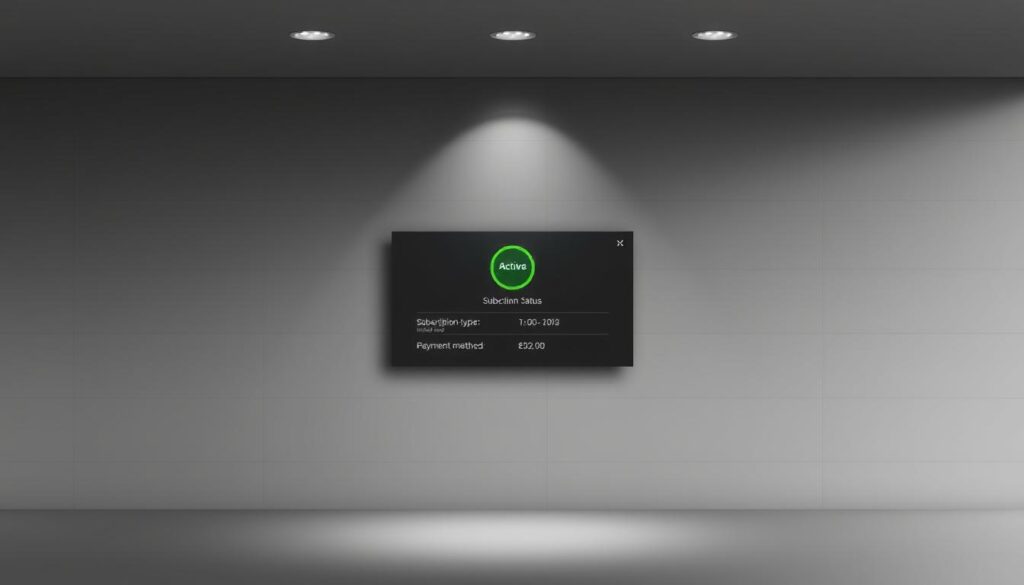
Start by opening the app on your device. During the loading portal phase, press OK to access the settings menu. Navigate to device info, where you’ll find details about your software and subscription status. This section displays whether your account is in trial, paid, or limited demo mode.
Step 2: Verify Payment Status
Once you’ve accessed device info, cross-reference your account on Smart-STB.net. This step ensures your payment details are up to date. If your status shows limited demo, it indicates your trial has expired, and a paid subscription is required for full access.
Here’s a quick guide to interpreting your status:
- Trial: Full access for a limited period.
- Paid: Active subscription with uninterrupted service.
- Limited Demo: Expired trial, requiring a paid plan.
Case Study: A user encountered a mismatched Software ID (AB:BC:CD:DE:EF:FF). By verifying their device info and updating their portal settings, they resolved the issue and regained access. This example highlights the importance of regularly checking your subscription status.
Resetting and Adding Portals
Managing your IPTV portal settings can feel overwhelming, but a reset often solves most issues. Whether you’re dealing with hardware changes or software glitches, resetting your application and reconfiguring your portal url can restore functionality. This section walks you through the process step by step.
Step 1: Reset Your App
Start by navigating to the settings menu on your device. Look for the option labeled Reset Settings or Clear User Data. This step ensures your app returns to its default state, removing any glitches or misconfigurations. Be cautious—resetting won’t delete your virtual mac, but it will clear saved data.
Here’s when a reset is most useful:
- After hardware changes, like switching TVs or devices.
- When software glitches disrupt your streaming experience.
- Before reconfiguring your portal url for a new subscription.
Step 2: Add Your Portals Again
Once the reset is complete, it’s time to reconfigure your portals. Activate Multiportal mode to add multiple portal urls. Enter the URL provided by your IPTV provider, ensuring it’s accurate to avoid connection issues. Prioritize Portal 1 as the default for seamless access.
Remote control variations can affect this process. Use the GREEN, F2, or BACK buttons to navigate the settings menu. Each device may have slightly different protocols, so refer to your manual if needed.
By following these steps, you’ll maintain uninterrupted access to your IPTV service. Resetting and reconfiguring your portals ensures a smooth, hassle-free experience.
Troubleshooting Common Issues
Encountering issues with your IPTV service can be frustrating, but knowing how to troubleshoot them makes all the difference. Whether your app is stuck in demo mode or you’re facing a software id mismatch, these problems can often be resolved with a few simple steps. Below, we’ll explore common issues and their solutions to help you regain seamless access to your service.

Issue 1: App Stuck in Demo Mode
If your app is stuck in demo mode, it’s likely due to an expired trial or a payment issue. Start by checking your subscription status on your provider’s website. If your trial has ended, you’ll need to transition to a paid plan.
Here’s how to resolve this:
- Cancel any active PayPal auto-payments to avoid conflicts.
- Resubscribe using Express checkout for a smooth transaction.
- Verify your mac address to ensure it matches your provider’s records.
These steps often resolve demo mode lockouts and restore full access to your service.
Issue 2: Software ID Mismatch
A software id mismatch can occur when transferring your license to a new device. This issue prevents your app from recognizing your subscription. To fix this, follow these steps:
- Access your provider’s license management portal.
- Select the appropriate transfer type: New Device or Same Device.
- Update your software id to match your current device.
By ensuring your software id is correctly configured, you’ll avoid access issues and enjoy uninterrupted streaming.
Here’s a quick comparison of common errors and their solutions:
| Error | Solution |
|---|---|
| Demo Mode Lockout | Cancel PayPal auto-payments and resubscribe. |
| Software ID Mismatch | Update license via provider’s management portal. |
| Buffering Issues | Edit your bouquet settings for optimized streaming. |
| EPG/Picon Failures | Reconfigure integration settings for accurate data. |
Understanding these troubleshooting steps ensures a smooth IPTV experience. Whether you’re resolving demo mode issues or fixing a software id mismatch, these solutions will help you get back to enjoying your favorite content.
Do I Need to Change Portals After Trial of IPTV?
Deciding whether to update your portal settings post-trial can simplify your iptv service experience. Portal changes are often necessary when switching providers, resolving MAC conflicts, or upgrading hardware. Understanding when and how to make these adjustments ensures uninterrupted streaming.
Each provider has specific requirements for their portal url. When transitioning from a trial to a paid plan, verify if your current account settings align with their guidelines. This step prevents service interruptions and ensures a smooth transition.
Maintaining service continuity is crucial. If you’re switching devices or upgrading hardware, request a new portal url from your provider. This ensures your account remains active and accessible across all your devices.
License migration between devices is another common scenario. Ensure your software id and virtual mac are correctly configured to avoid access issues. Most providers offer detailed guides to assist with this process.
Before making any changes, consider the cost-benefit analysis. Updating your portal url or switching providers may involve additional costs. Weigh these against the benefits of improved service quality or expanded channel options.
Here’s a quick checklist to guide your decision:
- Verify provider-specific portal requirements.
- Ensure your account settings are up to date.
- Request new portal url when switching devices.
- Confirm license migration details with your provider.
- Evaluate costs before making significant changes.
By following these steps, you can make informed decisions about your iptv service. Whether you’re updating your portal url or switching providers, these tips ensure a seamless experience.
Conclusion
Navigating IPTV services requires careful attention to portal settings and subscription details. This guide has outlined key factors to consider, from verifying your Software ID to managing your Virtual MAC address. Proper documentation ensures smooth transitions between devices and subscriptions.
For efficient portal management, follow a structured workflow. Start by confirming your payment status and updating your portal URL if necessary. Always keep your Software ID and Virtual MAC details handy to avoid access issues.
When troubleshooting, determine whether to contact your provider or resolve issues independently. For complex problems, reaching out to your service team is often the best approach. For minor adjustments, self-service steps can save time.
Before finalizing your setup, use this checklist:
- Confirm payment and subscription status.
- Verify your Software ID and Virtual MAC.
- Test your portal URL for seamless access.
By following these steps, users can enjoy uninterrupted streaming and make the most of their IPTV app experience.
FAQ
How can I check my subscription status?
To check your subscription status, access your device info and verify your payment details. This ensures your account is active and ready for use.
What should I do if my app is stuck in demo mode?
If your app is stuck in demo mode, reset the application and re-enter your portal URL. This usually resolves the issue and restores full access.
How do I reset and add portals again?
Start by resetting your app or device. Then, follow the instructions to add your portal URL again. Make sure to double-check the details for accuracy.
What happens if there’s a software ID mismatch?
A software ID mismatch can occur due to incorrect settings. Verify your device info and ensure the MAC address matches the details provided by your IPTV provider.
Is it necessary to change portals after a trial ends?
Yes, after your trial ends, you’ll need to update your portal URL or subscription details to continue using the service without interruptions.
How do I ensure my device is ready for a new portal?
Make sure your device is updated, and the app is properly configured. Follow the guide provided by your IPTV provider to add or change the portal URL seamlessly.